
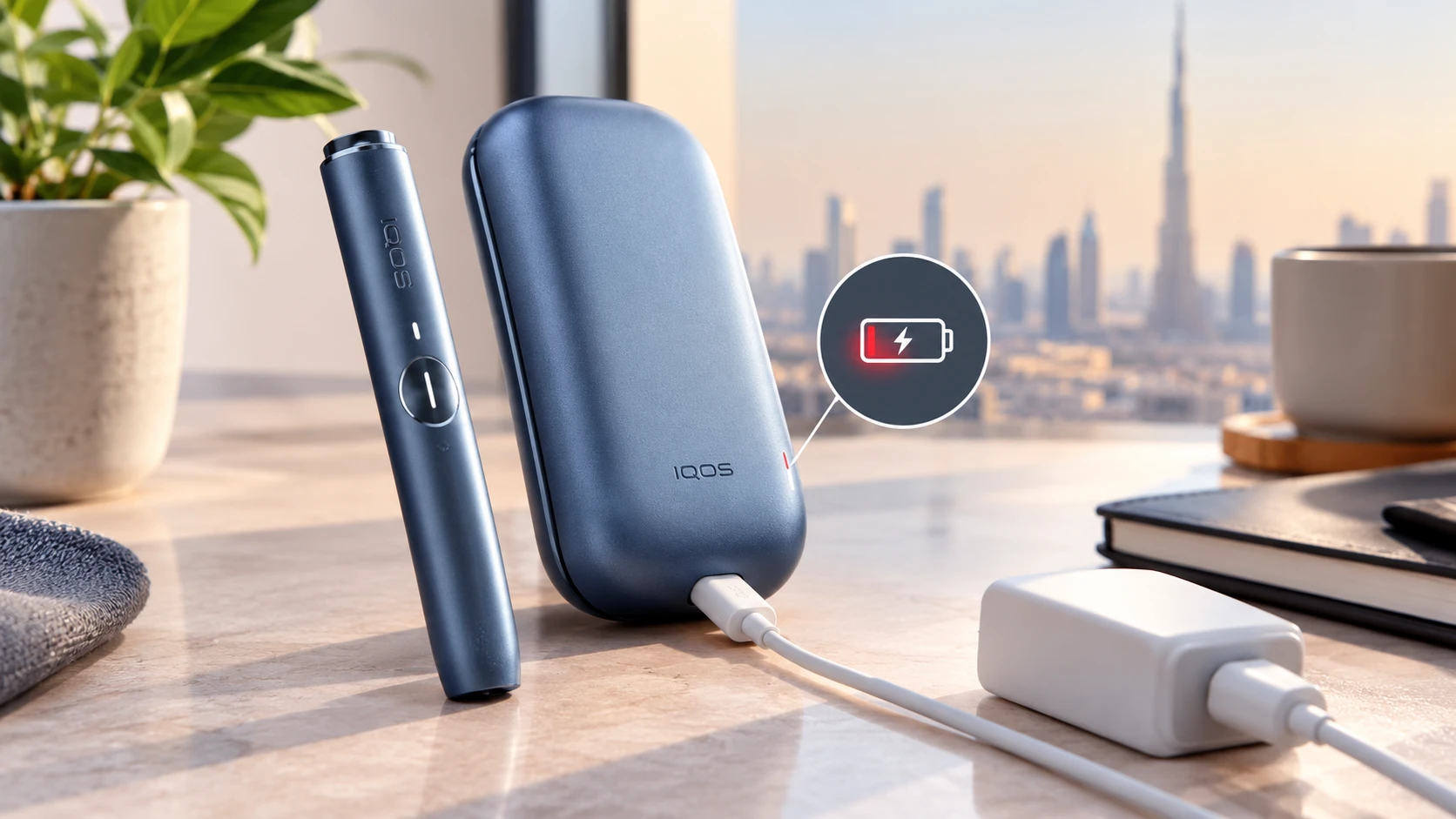
If your IQOS ILUMA is not charging, the cause may be a depleted battery, a faulty cable or adapter, a charging connection problem or a device issue. The first step is to identify which component is affected rather than assuming the entire device has failed.
This is particularly important for IQOS ILUMA models with a separate holder and pocket charger. The holder and charger have different charging needs, so one component can work while the other does not.
The following troubleshooting steps cover common causes, safe checks and situations where professional support is the better option.
Why Is My IQOS ILUMA Not Charging?
Battery Is Completely Depleted
A fully depleted battery may not respond immediately when connected to a charger. This can make the device appear unresponsive even when the battery is simply low.
Connect the device using the charging setup recommended for your model and allow it to charge as instructed. Watch for indicator lights, but remember that the expected response can differ by device.
If there is no response after the recommended charging period, check the power source and cable before concluding that the battery has failed.
Faulty USB Cable, Adapter or Power Source
A damaged cable, incompatible adapter or faulty wall socket can prevent the pocket charger from receiving power.
Check the cable for visible damage and confirm that the connector fits properly. If possible, test a known-working, compatible charging setup recommended by the manufacturer.
Avoid assuming that every USB-C cable or adapter is suitable simply because the connector fits. Follow the device’s charging specifications.
Holder or Pocket Charger Connection Problems
On two-piece ILUMA models, the holder charges inside the pocket charger. If the holder is not seated correctly, charging may not begin as expected.
Check that the holder is positioned properly and that there is no visible debris or damage affecting the charging contacts.
If the pocket charger itself has no charge, the holder may remain uncharged even when it is placed correctly.
Charging Port Damage or Visible Debris
Dust, lint or visible damage around the charging port can interfere with the connection.
Inspect the port under good lighting without inserting tools or sharp objects. If the port appears damaged, do not attempt to bend its components or force the cable into place.
For accessible charging contacts, follow the manufacturer’s cleaning instructions. Avoid water and cleaning liquids unless specifically approved.
Temperature-Related Charging Interruption
Temperature can affect charging and normal operation. Original IQOS ILUMA documentation specifies an operating temperature range of 0°C to 40°C.
In the UAE, a device left in a parked car or direct sunlight may become too hot to operate normally. Move it to a shaded indoor location and allow it to return naturally to a suitable temperature before trying again.
Do not use a refrigerator, freezer or direct cold-air blast to cool it rapidly, as condensation may create additional problems.
Possible Battery or Hardware Fault
If the cable, power source and basic connections appear normal but charging still fails, there may be a fault with the battery, charging port or another internal component.
These problems cannot be reliably diagnosed from the light pattern alone. Persistent faults should be assessed by an appropriate support service rather than through DIY disassembly.
How to Fix an IQOS ILUMA That Is Not Charging
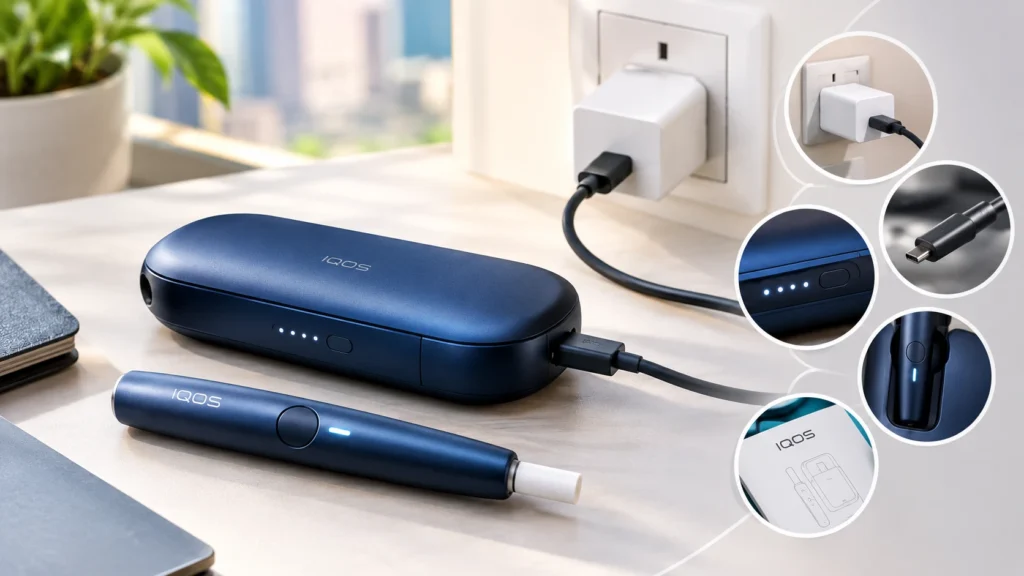
Work through the following checks in order. Stop if you notice physical damage, swelling, unusual heat or other signs of a possible battery problem.
Step 1 — Check the Power Source
Confirm that the wall socket or other approved power source is working. Make sure the cable is securely connected at both ends.
If the power source is unreliable, try another suitable one before investigating the device itself.
Step 2 — Inspect the Cable and Adapter
Look for damaged insulation, bent connectors or loose connections. Use compatible charging equipment that meets the manufacturer’s requirements.
If you have a suitable replacement cable, testing it can help identify whether the original cable is the problem.
Step 3 — Check the Indicator Lights
Observe the lights when the device is connected to power. On a two-piece model, distinguish the pocket charger’s battery indicators from the holder’s charging indicators.
If the lights indicate normal charging, allow the process to continue as directed. If a warning light persists, consult the instructions for that specific pattern.
Step 4 — Identify Whether the Holder or Charger Is Affected
If you have a two-piece model, determine whether the pocket charger receives power and whether the holder charges when seated correctly.
A working pocket charger with an unresponsive holder points to a different troubleshooting path from a pocket charger that does not respond to power at all.
Step 5 — Follow the Official Model-Specific Instructions
If the basic checks do not resolve the problem, follow the manufacturer’s troubleshooting and reset instructions for your exact model.
Do not apply a reset procedure intended for another ILUMA device. If the fault remains, contact official support.
Quick Troubleshooting Table
| Problem | Possible cause | Recommended first step |
| No lights | Depleted battery or power issue | Check the cable and power source |
| Charging keeps stopping | Connection or temperature issue | Inspect the setup and device temperature |
| Holder not charging | Holder seating or charging fault | Check the official instructions |
| Pocket charger not charging | Cable, adapter or charger fault | Test a compatible charging setup |
| Still not working after basic checks | Persistent device fault | Contact official support |
These are possible causes, not definitive diagnoses. The correct next step depends on your device model and its observed behaviour.
IQOS ILUMA Holder Not Charging
Check the Holder Position
Make sure the holder is placed correctly inside the pocket charger. If it is not seated properly, the charging connection may not work as intended.
Avoid repeatedly inserting or removing the holder forcefully. If it does not fit correctly or appears damaged, stop and seek advice.
Inspect for Visible Damage or Debris
Check accessible contact areas for visible dirt or damage. Follow the manufacturer’s cleaning instructions and use only approved methods.
Do not use water, metal tools or sharp objects to clean the holder or charger. Do not attempt to remove internal components.
Confirm That the Pocket Charger Has Power
Check the pocket charger’s own indicator lights and charging connection. A pocket charger with a depleted battery cannot provide normal charging to the holder.
If the pocket charger is also unresponsive, investigate its power source and cable first.
When the Holder May Need Service
If the pocket charger works but the holder remains unresponsive after the recommended checks, the holder may require professional assessment.
Do not open the holder or attempt to replace its internal battery yourself.
IQOS ILUMA Pocket Charger Not Charging
Check the USB Cable and Adapter
Confirm that the cable and adapter are compatible with the device. Check for visible damage, loose connectors and an unreliable power source.
Testing another suitable cable can help isolate a connection problem.
Inspect the Charging Port Safely
Look for visible debris or physical damage around the port. Never force a connector or insert sharp objects into the opening.
If the port is loose, bent or visibly damaged, stop using it and contact support.
Understand the Charger Indicator Lights
The pocket charger’s indicators can help distinguish a depleted battery from other issues.
On original two-piece ILUMA models, the strip lights indicate the pocket charger’s charge level, while the rounded lights can show the holder’s charging status. Interpret these signals according to your model’s documentation.
Identify Possible Hardware Problems
If the pocket charger does not respond to a compatible power source and cable, even after the recommended checks, a hardware issue may be responsible.
Do not continue testing a damaged or unusually hot charger. Arrange a professional assessment.
IQOS ILUMA Not Charging or Showing No Lights
Check the Power Connection
Start with the cable, adapter and power source. Confirm that all connections are secure and that the charging equipment is compatible.
Allow the Recommended Charging Period
If the battery is deeply depleted, the device may not show an immediate response. Follow the charging instructions for your exact model rather than relying on a universal waiting time.
If there is still no response after the recommended period, move to the next diagnostic step.
Follow the Correct Reset Procedure if Applicable
A reset may help with certain operating errors, but it is not a substitute for checking the charging setup.
For compatible original two-piece ILUMA models, the manufacturer’s documented reset procedure uses the pocket charger button while the holder is placed inside the charger. Other models may require different instructions.
When No-Light Problems Require Support
If the device remains unresponsive after the recommended charging and reset steps, contact official support. A no-light condition alone cannot tell you whether the battery, charging port or another component has failed.
Can You Reset IQOS ILUMA When It Will Not Charge?
Find the Correct Reset Procedure for Your Model
For compatible original two-piece IQOS ILUMA models, the official procedure is to place the holder inside the pocket charger and hold the pocket charger button for approximately 10 seconds, until the lights dim and the reset confirmation appears.
Do not automatically use this procedure for ILUMA ONE or ILUMA i ONE. Check the instructions for the specific model before attempting a reset.
Check the Indicator Lights After Resetting
After a successful reset, observe whether the indicator pattern changes and whether the device responds normally.
If charging resumes, continue to follow the normal charging instructions. If the same fault returns, further troubleshooting may be necessary.
Why a Reset May Not Fix Hardware Problems
A reset may address certain operating errors, but it cannot repair a damaged port, failed battery or defective charging component.
If the problem persists, avoid repeating the reset unnecessarily and seek professional assistance.
Can UAE Heat Affect IQOS ILUMA Charging?
How Excessive Temperature Can Affect Device Operation
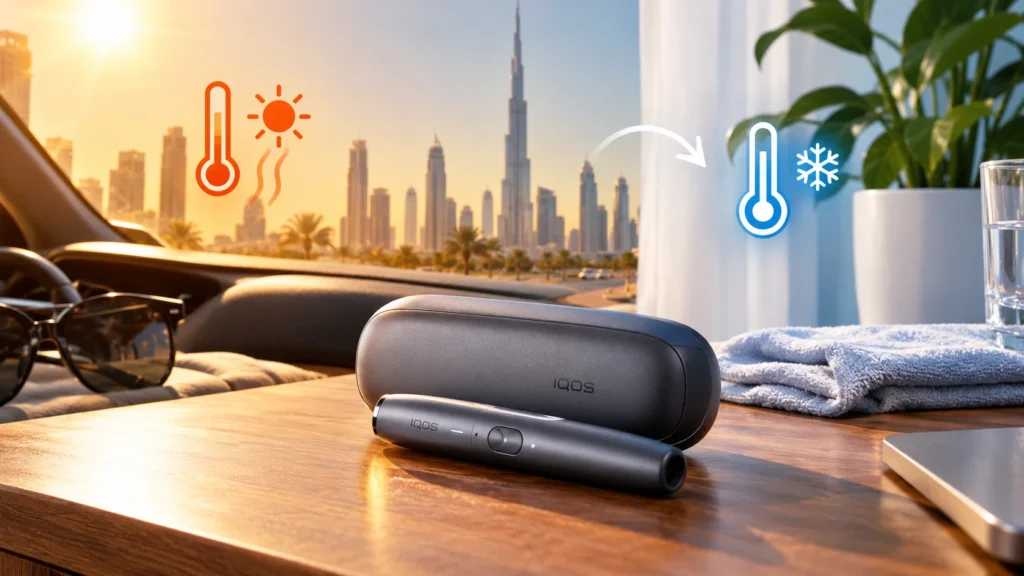
High ambient temperatures can interfere with the normal operation of electronic devices. In the UAE, prolonged exposure to direct sunlight or a hot car interior can push a device outside its recommended operating range.
If a charging problem starts after heat exposure, temperature may be one possible explanation, although it is not the only one.
Let the Device Return to a Suitable Temperature
Move the device to a shaded indoor location and allow it to cool naturally to a suitable temperature before charging again.
Do not place it in a refrigerator or freezer, or attempt to cool it using water. Rapid temperature changes can create condensation.
Avoid Unsafe Cooling Methods
Do not charge the device in direct sunlight or leave it on a hot dashboard. Store and charge it according to the manufacturer’s instructions.
If the device remains unusually hot after being removed from the heat, stop using it and seek advice.
When to Contact IQOS Support in the UAE
Charging Still Fails After Basic Checks
If the device remains unresponsive after checking the power source, cable, connections and model-specific instructions, professional diagnosis may be necessary.
Damaged Device or Charging Port
A cracked casing, damaged charging port or other physical defect should not be treated as a routine charging problem. Avoid attempting repairs that require opening the device.
Unusual Heat, Swelling or Other Safety Concerns
Stop charging immediately if the device is swollen, unusually hot, physically damaged or producing an unusual burning smell. Disconnect the power if it is safe to do so, and do not open or continue using the device.
Contact the appropriate support service for guidance.
Official Diagnostic, Service and Warranty Options
UAE users should check the official diagnostic options and applicable warranty terms for their device. Coverage can depend on the product, purchase country, registration and the specific fault.
Keep your model details and purchase information available when contacting support. This can help establish which service options apply.
Frequently Asked Questions
Why is my IQOS ILUMA not charging?
Common possibilities include a depleted battery, faulty cable or adapter, connection problems, temperature-related interruption or a hardware fault. Check the charging setup first, then follow the instructions for your model.
Why is my IQOS ILUMA holder not charging?
The holder may not be seated correctly, the pocket charger may have insufficient charge, or the holder’s charging connection may have a problem. Check both components before assuming the holder has failed.
Why is my IQOS ILUMA charger blinking but not charging?
The meaning depends on the indicator’s location and pattern. Check whether the light belongs to the holder or pocket charger, then consult the appropriate troubleshooting instructions.
What should I do if IQOS ILUMA shows no lights?
Check the power source, compatible cable and charging connection. Allow the device to charge as directed. If it remains unresponsive, contact support.
Can heat cause IQOS ILUMA charging problems?
Yes. Exposure to temperatures outside the recommended operating range can interrupt normal operation. Let the device return naturally to a suitable temperature and follow the manufacturer’s instructions.
Can I reset IQOS ILUMA if it will not charge?
A reset may resolve certain operating errors, but it will not fix every charging problem. Use only the procedure intended for your specific model.
How long does IQOS ILUMA take to charge?
Charging time varies by model, battery state and charging setup. Check the manufacturer’s instructions for your device rather than relying on a single time estimate for every ILUMA model.
When should I contact IQOS support?
Contact support if charging still fails after the recommended checks, the device repeatedly displays an error, or you notice physical damage or unusual heat. Stop charging a potentially damaged device.